
If your smart bulbs keep going offline, you know how quickly the convenience of a smart home can turn into a frustrating troubleshooting session. One moment you are controlling your lights with a simple voice command, and the next, your app shows them as “unresponsive.” This common issue is rarely caused by a defective bulb; instead, it usually points to underlying network configuration problems or environmental factors.
This guide explores the technical reasons behind these connectivity drops and provides professional solutions to stabilize your smart lighting system.
Smart bulbs keep going offline: Understanding the root causes
When you notice that smart bulbs keep going offline, the problem often originates from the communication path between the bulb and your network controller. Unlike smartphones or laptops, smart bulbs have small, low-power antennas that make them sensitive to network fluctuations.
The three primary culprits are usually signal strength, network congestion, and improper router settings. If your wireless router is older or supplied by your ISP, it may struggle to maintain steady connections with dozens of smart home devices simultaneously. Consumer-grade routers often have a “device limit” (typically around 30-50 devices). Once you exceed this, the router begins dropping idle connections—often your smart bulbs—to make room for active devices like phones or streaming sticks.
Wi-Fi frequency and signal interference
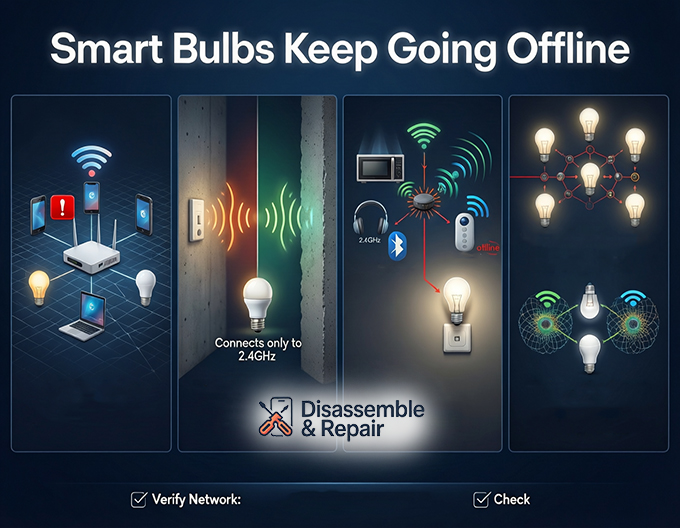
Most smart bulbs operate strictly on the 2.4GHz Wi-Fi network. This frequency is chosen for its ability to penetrate solid objects better than the faster 5GHz band. However, this advantage also makes it highly susceptible to signal interference.
The 2.4GHz vs. 5GHz conflict
Modern routers often use “band steering,” combining both 2.4GHz and 5GHz frequencies into a single network name (SSID). While convenient for phones, this can confuse smart bulbs. If your bulb tries to connect and the router steers it toward the 5GHz band, the connection will fail, or the bulb will drop offline repeatedly.
Sources of interference
Your home is full of devices competing for airtime on the 2.4GHz band. Common sources of interference include:
- Microwave ovens
- Bluetooth devices
- Baby monitors
- Neighboring Wi-Fi networks
If your bulbs are located far from the router or behind thick concrete walls, the signal strength may degrade to the point where the bulb cannot maintain a “heartbeat” connection with the server.
Network configuration: DHCP and Static IPs
One of the most overlooked technical reasons for connectivity issues is the DHCP lease. By default, your router dynamically assigns an IP address to every device. When this “lease” expires (often every 24 hours), the router assigns a new IP.
Smart bulbs, which are low-power devices, sometimes miss this renewal request. When the router assigns the bulb’s old IP address to a different device (like a tablet), an IP conflict occurs, knocking the bulb offline.
The solution: Static IP address
To prevent this, you can assign a static IP address to each of your smart bulbs within your router’s admin panel. This ensures that the bulb always uses the same address, eliminating conflicts and the need for constant lease renewals. This single step can drastically reduce how often your smart devices disconnect.
Zigbee protocol and smart home hubs
Not all smart bulbs use Wi-Fi. Brands like Philips Hue or Sengled often utilize the Zigbee protocol. These bulbs do not connect directly to your router; instead, they connect to a smart home hub (or bridge), which then connects to your router via Ethernet.
Zigbee mesh network mechanics
Zigbee devices create their own mesh network, where every powered device (like a bulb or plug) acts as a repeater. If a bulb keeps dropping, it might be too far from the hub or the next “repeater” bulb.
- Hub Placement: Ensure your smart home hub is not sitting directly on top of your Wi-Fi router. The 2.4GHz Wi-Fi signal can drown out the low-power Zigbee signal. Keep them at least 2-3 feet apart.
- Gaping Holes: If you turn off a Zigbee bulb at the physical wall switch, you break the mesh. This stops the signal from hopping to further devices, causing distant bulbs to go offline.
Mesh Wi-Fi systems and roaming issues
For larger homes, a mesh Wi-Fi system is often the recommended solution to eliminate dead zones. However, mesh systems can introduce their own set of problems for stationary smart devices.
Mesh nodes are designed to hand off devices seamlessly as you move (roaming). Smart bulbs, however, do not move. If a bulb is located equally between the main router and a satellite node, it may constantly “hop” between the two, attempting to find the stronger signal. This constant switching can result in the device appearing offline during the handoff process.
Fix: Many modern mesh systems allow you to “lock” a specific device to a specific node in the app settings. This prevents the bulb from jumping between access points unnecessarily.
Maintenance and quick fixes
When troubleshooting, it is essential to distinguish between a temporary glitch and a permanent failure.
- Power Cycle: The classic “turn it off and on again.” A power cycle clears the bulb’s temporary cache and forces it to request a new connection. While effective, this is only a temporary fix if the underlying network issue remains.
- Firmware Update: Manufacturers frequently release updates to patch connectivity bugs. Check your smart bulb app and your router’s administration page for a firmware update. Running outdated software is a common reason for instability.
Summary checklist
- Verify Network: Ensure bulbs are on a dedicated 2.4GHz channel.
- Check Signal: Test Wi-Fi strength at the bulb’s location.
- Address IPs: Reserve static IP addresses for your bulbs.
- Reduce Interference: Move hubs away from routers and microwave ovens.
- Update Software: Keep bulb and router firmware current.
By systematically addressing network congestion, configuring IP settings, and understanding the specific protocol your devices use, you can permanently solve the frustration of smart bulbs going offline.
Frequently asked questions
Why do my smart bulbs disconnect while my other devices stay online?
Smart bulbs have smaller, lower-power antennas compared to smartphones or laptops, making them more sensitive to network fluctuations. Additionally, many consumer-grade routers have a device limit; once exceeded, the router may drop “idle” connections like smart bulbs to prioritize high-bandwidth devices like streaming sticks or phones.
Should I connect my smart bulbs to a 2.4GHz or 5GHz Wi-Fi network?
Most smart bulbs strictly require a 2.4GHz frequency because it has a better range and can penetrate walls more effectively than 5GHz. If your router uses “band steering” to combine both frequencies into one name, the bulb may struggle to connect. For the best stability, ensure your bulbs are locked to a dedicated 2.4GHz channel.
How does assigning a static IP address help with connectivity?
Routers typically assign temporary IP addresses via DHCP that expire every 24 hours. If a low-power smart bulb misses the renewal request, or if the router assigns its old address to another device, an IP conflict occurs. Assigning a static IP (or IP reservation) in your router settings ensures the bulb always has the same address, preventing these common dropouts.
Can my Zigbee smart bulbs be affected by my Wi-Fi router?
Yes. Both Zigbee and standard Wi-Fi often operate on the 2.4GHz frequency. If your Zigbee hub is placed directly next to your Wi-Fi router, the stronger Wi-Fi signal can drown out the Zigbee communication. It is recommended to keep your smart home hub at least 2-3 feet away from your router to reduce interference.
Why does my mesh Wi-Fi system cause my bulbs to go unresponsive?
Mesh systems are designed for “roaming,” meaning they try to pass devices to the nearest node as you move through the house. Because smart bulbs are stationary, they can sometimes get stuck “hopping” between two nodes that have similar signal strengths. You can often fix this by using your mesh app to “lock” the bulb to the specific node closest to it.