
Modern appliances have transformed the laundry experience, but sometimes you just want a simple, unconnected machine. Knowing how to turn off wifi on LG washer models is essential for users who wish to troubleshoot connectivity issues, enhance network security, or simply prefer an offline appliance. While LG SmartThinQ technology offers convenience, disabling it is not always as intuitive as flipping a switch.
This guide will walk you through the specific steps, button combinations, and application settings required to disconnect your washer from the internet and manage its smart functions effectively.
Understanding Your LG Smart Washer’s Connectivity
Before attempting to disconnect, it is helpful to understand how your machine communicates. Most modern LG washers are equipped with the LG ThinQ app (formerly SmartThinQ) integration. This allows for features like remote monitoring, cycle downloading, and energy tracking.
Read more LG washing machine AE error
The Wi-Fi indicator on your control panel is the primary sign that your machine is broadcasting or connected. When this light is solid, the washer is connected to your home network. When it is blinking, it is usually in pairing mode. To effectively “turn off” the Wi-Fi, you are essentially clearing the stored network settings or putting the machine into a state where it is no longer actively communicating with your router.
Unlike a smartphone, washing machines often do not have a dedicated “Off” toggle for their wireless radios. Instead, the process involves resetting the network module to drop the connection.
How to Turn Off Wi-Fi on LG Washer Using the Control Panel
The most direct method to disable the connection is by using the physical buttons on the machine. This method works for the vast majority of front-load and top-load models.
Identifying the Correct Button
Look at your washer’s control panel. You need to locate the button specifically labeled “Wi-Fi.”
- Dedicated Button: On some models, this is a standalone button labeled “Wi-Fi.”
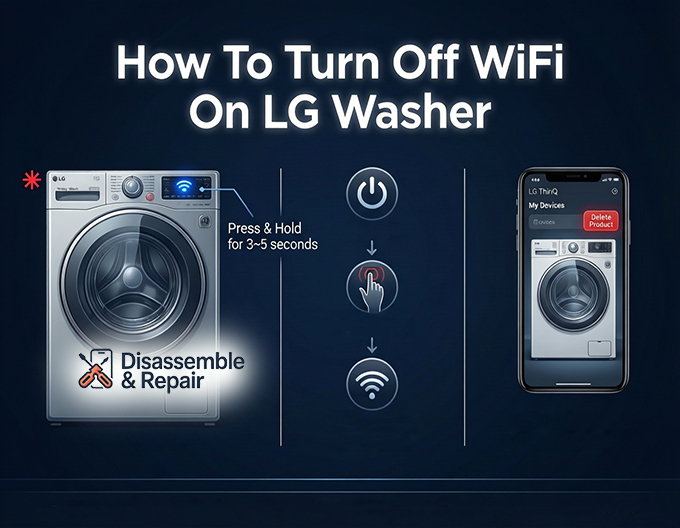
- Secondary Function: On most models, the Wi-Fi function is a secondary feature of another button, most commonly the Delay Wash button. You will see an asterisk (*) or small text reading “Wi-Fi” underneath the main label.
The Disconnection Sequence
- Power On: Turn on your washer. You do not need to start a cycle.
- Press and Hold: Press and hold the Wi-Fi (or Delay Wash) button for 3 seconds.
- Observe the Indicator: The Wi-Fi indicator LED should begin to blink or turn off completely.
- If the light was solid (connected), holding the button resets the network settings, effectively disconnecting it from your router.
- If the light begins blinking, the machine has entered pairing mode but has dropped the current connection. If you do not pair it with a new device, it will eventually time out and stop broadcasting, or simply remain unconnected.
Troubleshooting the Button Method
If holding the button for 3 seconds does not seem to work, try holding it for 5 to 10 seconds. Some older “Tag On” models using NFC technology may not have a Wi-Fi button at all. In such cases, the smart functions operate differently and do not maintain a permanent wireless connection.
Managing Connections via the LG ThinQ App
If you prefer a software-based approach, or if you want to ensure the device is fully removed from your smart home ecosystem, you can use the LG ThinQ app.
Removing the Device
- Open the LG ThinQ app on your smartphone.
- Navigate to the dashboard where your smart washer is listed.
- Tap the three vertical dots (Menu) or the “Settings” gear icon usually located at the top right of the screen.
- Select “Product Settings” or “Manage.”
- Choose the option to disconnect or “Delete Product.”
By deleting the washer from the app, you sever the link between the appliance and your account. This prevents the app from querying the washer. However, to stop the washer from attempting to reconnect to your router, you should still perform the control panel button reset described in the previous section.
Changing Network Settings
If you are troubleshooting rather than permanently disconnecting, you might not need to delete the device. Instead, you can navigate to the network settings within the app to update the Wi-Fi details. If you want to stop the washer from using data, you can simply block the device’s MAC address via your home router’s administrative settings.
Remote Start vs. Wi-Fi Connection
It is crucial to distinguish between the wireless connection and the Remote Start button.
- Wi-Fi Connection: This is the link to the internet. It allows the machine to send push notifications and energy data.
- Remote Start: This feature allows you to start a laundry cycle from your phone.
Many users mistakenly believe that simply turning off Remote Start disables the Wi-Fi. This is incorrect. When you disable Remote Start, you are only preventing the machine from accepting remote start commands for safety reasons. The Wi-Fi indicator may still remain on, and the machine will continued to transmit status updates to the cloud.
To fully stop the radio transmission, you must reset the network settings using the Delay Wash / Wi-Fi button combination, not the Remote Start button.
Smart Diagnosis and Offline Usage
One of the main concerns users have when disabling Wi-Fi is losing access to Smart Diagnosis. This feature helps troubleshoot issues by analyzing the machine’s behavior.
Read more LG washing machine E4 error
Fortunately, disabling Wi-Fi does not render this feature useless. LG washers support audible Smart Diagnosis:
- Call Support: You initiate a call with LG customer service.
- Activate Mode: Press the specific key combination (often the Water Temp button) as instructed by the manual.
- Transmit Sound: Hold your phone’s microphone near the Power button or the designated Smart Diagnosis logo. The machine will emit a series of fax-like tones that the technician’s system can decode.
This ensures that even without an active wireless connection, you can still receive technical support for your appliance.
Hard Reset and Factory Reset Options
If you are facing persistent connectivity issues or the Wi-Fi light refuses to turn off, you may need to perform a hard reset.
Power Cycling
- Turn off the washer using the Power button.
- Unplug the washer from the electrical outlet.
- Press and hold the Start/Pause button for 5 seconds to dissipate any residual static electricity.
- Wait for at least one minute before plugging the washer back in.
- Turn the washer on and check the Wi-Fi indicator. It should now be off.
Factory Reset
A factory reset wipes all user settings, including custom cycles and network settings.
- Standard Method: On many models, holding the Wi-Fi and Remote Start buttons simultaneously for several seconds may trigger a reset, though this varies by model.
- Top Loaders: For some top-load models, unplugging the machine is often the only way to clear the volatile memory if a specific reset button combo is not listed in the manual.
Privacy and EMF Concerns
Some users wish to learn how to turn off wifi on LG washer models due to concerns about Electromagnetic Frequencies (EMF) or privacy.
It is important to note that “soft” disabling (using buttons) stops the active connection, but the internal Wi-Fi module may still be powered. If you require a zero-emission environment, the only 100% effective method is physically disconnecting the Wi-Fi module inside the machine.
- Warning: This requires opening the washer’s top panel and locating the Wi-Fi card (usually a small rectangular board connected by a wire harness).
- Risk: This will void your warranty and requires technical competence.
- Recommendation: For most users, simply not setting up the Wi-Fi or performing the network reset via the Delay Wash button is sufficient to stop active broadcasting.
Common Issues When Turning Off Wi-Fi
The Light Won’t Turn Off
If the Wi-Fi indicator stays solid despite holding the button:
- Ensure you are holding the button for the full 3-5 seconds.
- Check if “Child Lock” is active. Some machines ignore specific inputs if Child Lock is on. Disable Child Lock (usually by holding Spin/Soil buttons) and try again.
The Machine Reconnects Automatically
If you have not deleted the washer from the LG ThinQ app, the app may attempt to re-establish a connection if your phone is near the machine via Bluetooth (on newer models) or if the credentials are saved in the machine’s non-volatile memory. Ensure you delete the device from the app to prevent this.
Conclusion
Taking control of your smart home appliances ensures they work for you, not the other way around. Whether you are troubleshooting a glitchy connection or simply prefer an analog laundry experience, knowing how to turn off wifi on LG washer is a valuable skill.
By utilizing the Delay Wash or dedicated Wi-Fi button on your control panel, you can easily manage the wireless connection. Remember that smart functions like Smart Diagnosis often have offline backups, so you lose very little utility by disconnecting. Always refer to your specific user manual for model-specific button locations, but for most LG units, the 3-second hold rule is the universal standard for network management.
Frequently Asked Questions
Which button should I use to turn off Wi-Fi if my washer doesn’t have a dedicated “Wi-Fi” button?
On most LG washer models, the Wi-Fi function is assigned as a secondary feature of the Delay Wash button. Look for a small Wi-Fi symbol or an asterisk next to the label. Pressing and holding this button for three to five seconds will typically disconnect the machine from the network.
Does turning off the Wi-Fi prevent me from using Smart Diagnosis?
No, you can still use the Smart Diagnosis feature even if the Wi-Fi is disabled. LG washers are equipped with an audible diagnosis mode. You can initiate this by calling LG support and holding your phone’s microphone near the power button while the machine emits specific diagnostic tones.
Read more How to drain LG washing machine with no power
Will my LG washer reconnect to the internet automatically after I turn it off?
If you have only used the control panel to disconnect, the washer may occasionally attempt to reconnect if it still has your network credentials saved. To prevent this, you should also open the LG ThinQ app on your smartphone and remove the washer from your list of registered products.
Why is the Wi-Fi indicator light still on even though I disabled the Remote Start feature?
The Remote Start feature and the Wi-Fi connection are two separate functions. Disabling Remote Start only prevents the app from starting a laundry cycle; it does not turn off the wireless radio or the connection to your router. To turn off the Wi-Fi light, you must perform the specific button-hold sequence on the control panel.
What should I do if the Wi-Fi button is unresponsive?
First, ensure that the Child Lock feature is not activated, as this disables most button inputs. If Child Lock is off and the button still doesn’t work, perform a hard reset by unplugging the washer from the power outlet for at least one minute, then plug it back in and try the sequence again.