
Experiencing connectivity issues with your smart appliance can be frustrating, especially when you are trying to utilize remote monitoring features. Learning how to reset LG washer WiFi is the critical first step toward restoring the stable connection between your machine and the LG ThinQ app. Whether you have changed your home internet provider, updated your router password, or simply lost connection due to a power outage, resetting the network settings on your washer is a straightforward process once you know the specific button combinations.
In this guide, we will explore the technical steps to reset your connection, troubleshoot network frequency issues, and ensure your smart laundry ecosystem is functioning at peak performance.
Understanding the LG Smart Laundry Ecosystem
Before diving into the reset procedures, it is essential to understand how your appliance communicates. Modern LG washers utilize the LG ThinQ app (formerly known as SmartThinQ) to provide users with remote control capabilities, cycle monitoring, and energy usage data.
The communication relies heavily on a stable link between the appliance’s internal Wi-Fi module and your home’s wireless access point. When this link is severed or corrupted, the Control panel on the washer may still function manually, but all smart features, including push notifications and remote cycle starting, will cease to function. This is where a network reset becomes necessary to clear the old credentials and broadcast a new signal for pairing.
Read more LG washing machine E5 error
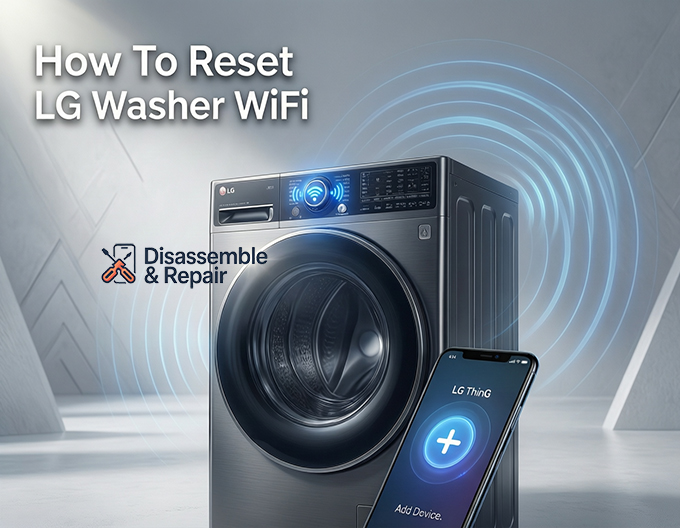
How to reset LG washer WiFi
This section details the primary methods for clearing network settings. Please note that the exact button configuration can vary slightly depending on whether you have a front-load, top-load, or WashTower model.
Read more LG washer keeps disconnecting from wifi
Method 1: The Dedicated Wi-Fi Button
On many mid-range to premium models, the process is explicit. Locate the Wi-Fi button on the Control panel.
- Power on the washing machine.
- Press and hold the Wi-Fi button for exactly 3 seconds.
- Listen for a distinct audible beep.
- Observe the Wi-Fi indicator light. It should begin to blink rapidly or turn off and then blink, indicating that the Wi-Fi has been disabled or put into pairing mode.
Method 2: The Secondary Function (Delay Wash and Remote Start)
Most LG washers do not have a dedicated button solely for Wi-Fi; instead, they integrate this function into other buttons. You will need to look for an asterisk (*) or small text underneath a button labeled “Wi-Fi.”
- The Delay Wash Button: On many top-loaders and older front-loaders, the Wi-Fi reset function is secondary to the Delay Wash button. Press and hold the Delay Wash button for 3 seconds until the Wi-Fi symbol flashes.
- The Remote Start Button: On newer dial-centric models, the functionality is often paired with the Remote Start button. Press and hold Remote Start for 3 seconds.
If performed correctly, the Wi-Fi indicator light on the dashboard will pulse. This signifies that the current network configuration has been cleared and the machine is broadcasting its presence (often visible as an SSID looking like “LGSmartLaundry” in your phone’s Wi-Fi settings) to the LG ThinQ app.
Configuring Your Network: The 2.4 GHz Requirement
One of the most common reasons users search for how to reset LG washer WiFi is due to repeated connection failures during the setup process. The vast majority of these failures stem from Router settings.
LG smart appliances, like most IoT (Internet of Things) devices, require a 2.4 GHz network. They are generally incompatible with 5 GHz networks.
Read more LG washing machine start button not responding
Why 5 GHz Causes Failure
Modern routers are often “dual-band” or “tri-band,” meaning they broadcast both 2.4 GHz and 5 GHz signals. Sometimes, these bands are combined under a single SSID (network name). If your phone is connected to the 5 GHz band while trying to set up the washer, the handshake protocol may fail.
Steps to Resolve Frequency Issues:
- Split your SSIDs: Log into your Router settings. Ensure your 2.4 GHz network has a distinct name (e.g., “HomeWiFi_2.4G”) compared to your 5 GHz network.
- Connect your phone: Before opening the LG ThinQ app, force your smartphone to connect to the dedicated 2.4 GHz network.
- Retry the pairing: Once your phone and the washer are communicating on the same frequency band, the setup usually proceeds without error.
Reconnecting via the LG ThinQ App
Once you have successfully reset the Wi-Fi on the physical machine (indicated by the blinking light), you must complete the digital handshake.
- Open the LG ThinQ app on your iOS or Android device.
- Select the “+” button to add a new device.
- Select “Washer” from the category list.
- The app will guide you to verify the Wi-Fi indicator light is blinking.
- Follow the on-screen prompts to link the washer to your home network. You will need to enter your Wi-Fi password again, even if it hasn’t changed, as the reset cleared the previous data.
Factory Reset vs. Network Reset
It is crucial to distinguish between a standard Wi-Fi reset and a full Factory reset.
- Network Reset: This is what we have described above (holding the Wi-Fi button or Delay Wash button). It only clears the internet settings. Your custom wash cycles and MyCycle preferences usually remain intact.
- Factory Reset: This returns the main board to its original out-of-box state. This is rarely needed for connectivity issues unless the main computer board is glitching. To perform a factory reset, you usually have to unplug the machine, press and hold the Start/Pause button for 5 seconds while unplugged, and then plug it back in. This drains residual power and resets the logic board.
Leveraging Smart Diagnosis for Connectivity Issues
If you have followed the steps on how to reset LG washer WiFi and are still facing issues, the problem might not be the network credentials. It could be a hardware fault.
Read more LG washing machine PE error
LG washers come equipped with Smart Diagnosis. This feature allows the machine to communicate directly with the LG ThinQ app or a customer support agent using audible tones or internal data transmission.
- Open the LG ThinQ app.
- Select your washer (if it appears offline, you may need to use the audible diagnosis method).
- Navigate to the Smart Diagnosis section.
- Follow the prompts to initiate the diagnosis.
If the Wi-Fi module itself is damaged, Smart Diagnosis may return a specific error code related to the communication bus or the Wi-Fi board. In this scenario, a simple reset will not fix the issue, and a service technician may be required to replace the Wi-Fi module located behind the Control panel.
Troubleshooting: When the Wi-Fi Light Won’t Blink
There are instances where holding the Remote Start or Delay Wash button yields no result. The Wi-Fi indicator light remains off or solid.
Check Child Lock
If the Child Lock feature is active, the control panel ignores most inputs to prevent accidental changes. Look for a padlock icon on the display. You must disengage Child Lock (usually by holding two specific buttons indicated by a bracket and a lock icon) before you can attempt to reset the Wi-Fi.
Router Distance and Interference
If the washer is located in a basement or a garage far from your router, the signal strength might be too weak to maintain a connection, leading you to believe the Wi-Fi needs resetting constantly.
- Signal Strength: Check your phone’s Wi-Fi signal while standing directly in front of the washer. If it is weak, the washer’s smaller antenna will likely struggle.
- Mesh Systems: Consider installing a Wi-Fi extender or a mesh node near the laundry room to boost the 2.4 GHz network signal strength.
Conclusion
Maintaining a smart home requires occasional troubleshooting, but the benefits of remote laundry management are well worth the effort. By understanding how to reset LG washer WiFi using the correct button combinations—whether it is the Delay Wash button, Remote Start, or a dedicated key—you can ensure your appliance remains online.
Remember that the success of the reset relies heavily on your external environment. Ensuring you are connecting to a 2.4 GHz network and that your SSID is visible are critical factors. Once reconnected, you can fully utilize the convenience of the LG ThinQ app, from downloading specialized wash cycles to receiving maintenance alerts via Smart Diagnosis. If problems persist despite a successful reset, verify your router configurations or contact LG support to rule out hardware failure.
Frequently Questions
Where is the Wi-Fi button if it isn’t clearly labeled on my control panel?
On many LG models, the Wi-Fi function is a secondary feature rather than a dedicated button. Look for an asterisk (*) or “Wi-Fi” text printed underneath the Delay Wash or Remote Start buttons. Pressing and holding the designated button for three seconds will initiate the network reset.
Why won’t my washer connect to my modern 5 GHz Wi-Fi network?
LG smart appliances are specifically designed to operate on 2.4 GHz networks and are generally incompatible with 5 GHz bands. If your router uses a single name (SSID) for both frequencies, you may need to go into your router settings to split the bands or ensure your smartphone is connected to the 2.4 GHz signal during the pairing process.
Why is my washer ignoring the Wi-Fi reset command when I press the buttons?
The most common reason for an unresponsive control panel is the Child Lock feature. If you see a padlock icon on the display, the machine will ignore button inputs to prevent accidental changes. You must disengage the Child Lock before you can successfully reset the Wi-Fi settings.
Will I lose my custom wash cycles or “MyCycle” settings if I reset the Wi-Fi?
A standard network reset only clears your internet credentials and router information; it does not delete your internal machine preferences. However, if you perform a full Factory Reset (unplugging the machine and holding Start/Pause) or delete the appliance from the LG ThinQ app, you may need to re-download specialized cycles.