
Mastering Samsung washer how to start procedures is the first step toward ensuring your laundry is cleaned efficiently and your appliance remains in top condition. Whether you have just upgraded to a high-tech Bespoke model or are troubleshooting an older unit, knowing the correct sequence of operations prevents common errors and frustration.
Master Guide: Samsung Washer How to Start
Modern washing machines are more than just simple “on” and “off” appliances; they are sophisticated computers dedicated to fabric care. A Samsung washer offers a blend of automated intelligence and manual control that can seem overwhelming at first glance. This comprehensive guide will walk you through the entire process, from loading the drum to understanding the digital display, ensuring every load is washed to perfection.
Samsung washer how to start: The Fundamental Steps
To operate your machine correctly, you must follow a specific sequence. While model features may vary, the core logic of the Control panel remains consistent across the brand’s ecosystem.
Read more Samsung washing machine SUD error
1. Powering Up the Appliance
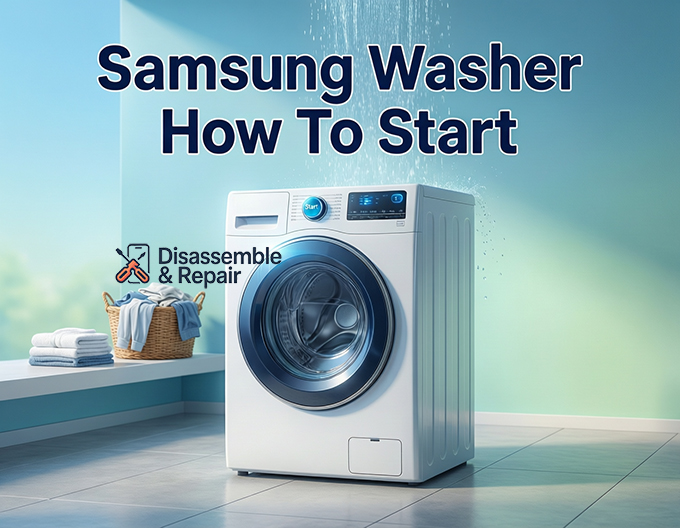
The first step is seemingly the simplest but often causes confusion due to the sensitivity of modern touch controls. Locate the Power button, which is usually a physical button or a capacitive touch sensor located on the far left or right of the panel.
- Action: Press the Power button once.
- Visual Cue: The Digital display should illuminate, and you will typically hear a melodic chime indicating the system is ready.
- Note: If the machine does not light up, check your breaker box or ensure the plug is firmly seated in the outlet.
2. Loading and Detergent Preparation
Before selecting a cycle, proper loading is critical.
Read more Samsung washing machine TE2 error
- Sort your laundry: Separate heavy items like towels from delicate synthetics.
- Load the drum: For a Front load washer, pile clothes loosely without overstuffing to ensure the door seals correctly. For a Top load washer, arrange clothes in a loose circle around the impeller or agitator to maintain balance.
- Fill the Detergent drawer: Open the drawer usually located at the top left. You will see distinct compartments.
- Main Wash: Pour liquid or powder detergent here (often marked with a “II”).
- Softener: Add fabric softener to the compartment marked with a flower icon. Do not exceed the “Max” line, or it will siphon out prematurely.
- Prewash: Use this small compartment (marked “I”) only if you intend to select the Prewash cycle.
3. Selecting the Correct Cycle
Central to the operation is the Cycle selector dial. On newer AI-powered models, this might be a sleek, metallic knob that scrolls through options on the digital screen. On standard models, it is a rotary dial with LED indicators.
- Turn the dial to highlight your desired program (e.g., Normal, Heavy Duty, Bedding, or Delicates).
- As you turn the dial, the default settings for water temperature, spin speed, and soil level will automatically adjust on the display.
4. Customizing Your Wash
You are not stuck with the factory defaults. Use the buttons on the Control panel to modify the wash.
- Temperature: Press to toggle between Hot, Warm, Eco Warm, and Cold.
- Rinse: Add extra rinses if you have skin sensitivities.
- Spin: specific clothing requires lower spin speeds to prevent wrinkles.
- Options: This is where you can activate special features like Super Speed or Pre-Soak.
5. Initiating the Cycle
This is the most common stumbling block for new users. Unlike older machines where a quick press worked, Samsung washers often require a deliberate action to prevent accidental activation.
- Locate the Start/Pause button.
- The “Hold to Start” Rule: You must press and hold the button for approximately 3 seconds.
- Visual confirmation: You will see a “locked door” icon appear, and the machine will make a clicking sound.
6. The Sensing Mode Phase
Once started, water will not rush in immediately. The washer will enter Sensing mode.
- The drum will rotate back and forth slowly.
- The digital display may show a circling animation.
- What is happening? The washer is weighing the dry laundry to calculate the precise amount of water and cycle time needed. Do not be alarmed by the silence or the clicking sounds during this phase; it is normal operation.
Front Load vs. Top Load Specifics
While the electronic brains are similar, the physical mechanism of Samsung washer how to start varies between the two main body styles.
Operating a Front Load Washer
The Front load washer relies entirely on a watertight seal.
- Door Latch Security: When you press Start, the Door latch engages immediately with a loud click. If the door is not pushed firmly shut, the sensor will prevent the cycle from starting and may flash a “dC” (Door Check) error.
- Pause Feature: If you need to add a sock after starting, press the Start/Pause button. You must wait for the water level to be safe and the door to unlock, which can take a minute.
- Maintenance: Always leave the door slightly ajar after use to let the gasket dry and prevent odors.
Operating a Top Load Washer
The Top load washer offers a different experience, particularly regarding the lid.
Read more Samsung washing machine LC2 error
- Lid Lock: Modern Samsung top loaders also lock the lid for safety, especially during the spin cycle.
- Deep Fill: Many top loaders have a specific “Deep Fill” button. You must select this before holding the Start button if you want more water than the sensing mode automatically allocates.
- Balance: If you start a cycle and hear a violent banging shortly after, the load is unbalanced. The washer may automatically stop and try to refill with water to redistribute the clothes.
Advanced Control: Using the SmartThings App
For the ultimate convenience, you can control your machine via your smartphone. This is particularly useful for starting a load while you are at work so it finishes exactly when you get home.
- Download and Connect: Install the SmartThings app and log in to your Samsung account. Tap “Add Device” and scan the QR code on your washer.
- Enable Smart Control: This is a crucial safety step. You cannot simply open the app and start the washer at any time. You must physically press the “Smart Control” button on the washer’s panel after loading it.
- Remote Start: Once Smart Control is active (indicated by a Wi-Fi icon on the display), the physical buttons on the washer are disabled, and control transfers to the app. You can now select your cycle, adjust temps, and hit “Start” from your phone.
Troubleshooting: Why Won’t It Start?
If you have followed the steps above and the washer remains silent, one of these common entities or features is usually the culprit.
1. Child Lock is Active
This is the number one reason for service calls that turn out to be false alarms.
Read more Samsung washer drain hose leaking
- Symptoms: The power is on, but the Start/Pause button and Cycle selector dial are unresponsive. A small icon resembling a smiling face or a padlock is lit on the display.
- The Fix: Look for the Child Lock button combo (often two buttons linked by a bracket line, like Temp + Rinse). Press and hold both simultaneously for 3 seconds to disengage the lock.
2. Door Latch Issues
The washer will never start if the computer thinks the door is open.
- Check: Ensure no fabric is trapped between the door glass and the rubber seal.
- Listen: When you hold Start, listen for the solenoid click. If you hear a buzzing noise instead of a click, the latch mechanism might be failing.
3. Delayed Start is On
If you press start and the timer jumps to a high number (like 4 or 8 hours) and counts down, you have accidentally enabled “Delay End.”
- The Fix: Power the machine off and on again to reset the programming.
4. Control Panel Glitches
Sometimes the Digital display logic freezes.
- Hard Reset: Unplug the washer from the wall for 60 seconds. Plug it back in to reset the main control board.
Optimizing Your Wash Cycles
Understanding the different cycles available on your Cycle selector dial can save you energy and protect your clothes.
- Normal: The go-to standard. It uses Sensing mode to determine water levels and usually pairs with warm water and high spin.
- Heavy Duty: Aggressive tumbling and longer wash times. Use this for jeans and heavily soiled work clothes.
- Bedding: vital for comforters. It uses more water and a different spin rhythm to prevent the load from balling up. Warning: Never wash waterproof items (like mattress protectors) on anything other than a specific Waterproof or Delicate cycle, as they can cause the machine to become unbalanced during the spin.
- Quick Wash: Great for lightly soiled items (under 4 lbs). Do not use this for a full basket, or the detergent won’t rinse out properly.
- Self Clean / Pure Cycle: This is not for clothes. You should run this monthly with no laundry and no detergent (or a specific drum cleaner) to remove mold and residue from the internal tub.
Conclusion
Successfully navigating the Samsung washer how to start process is a matter of understanding the sequence: Power, Load, Select, and Hold-to-Start. By familiarizing yourself with the Control panel symbols, properly using the Detergent drawer, and respecting the safety mechanisms like the Door latch and Child Lock, you can ensure years of reliable service from your appliance. Whether you prefer the manual feel of the dial or the high-tech ease of the SmartThings app, your Samsung washer is designed to adapt to your lifestyle once you master the basics.
Frequently Asked Questions
Why won’t my Samsung washer start immediately when I press the Start button?
Unlike many older appliances, Samsung washers require you to press and hold the Start/Pause button for approximately three seconds. This “Hold to Start” rule is a safety feature designed to prevent the machine from being activated by accidental touches. You will know it has started when you hear the door latch click and see the locked icon appear on the digital display.
Why is my washer spinning slowly without any water entering the drum?
This is a normal part of the “Sensing mode.” After you start a cycle, the washer rotates the drum back and forth to weigh the dry laundry. This allows the machine’s computer to calculate the exact amount of water and the precise cycle time needed for that specific load. Water will begin to fill the tub once this sensing phase is finished.
What should I do if the buttons on the control panel are not responding?
If the power is on but the buttons are unresponsive, the Child Lock feature is likely active. Look for a padlock or smiling face icon on the display. To deactivate it, locate the two buttons joined by a bracket line (typically Temp and Rinse) and press and hold them simultaneously for three seconds.
Can I add more clothes to the washer after the cycle has already started?
Yes, you can add items by pressing the Start/Pause button. For front-load washers, the machine will pause and check if the water level and temperature are safe before releasing the door latch, which may take a minute. For top-load washers, the lid will unlock once the drum stops spinning. After adding the item, close the door or lid and hold the Start button again to resume.
How do I enable the remote start feature using the SmartThings app?
To use your phone to start the washer, you must first connect the appliance to the SmartThings app via your home Wi-Fi. Once connected, you must physically press the “Smart Control” button on the washer’s panel after loading your laundry. This safety step confirms you are ready for the machine to be operated remotely; once active, you can initiate the cycle from your smartphone.