
If you find your August Smart Lock not responding to commands from your phone or keypad, it can be a frustrating barrier to entering your own home. This guide provides a professional, step-by-step approach to diagnosing and resolving the most common connectivity, power, and software issues associated with August smart home devices.
Why is your august smart lock Not responding?
The “August Smart Lock Not Responding” error typically stems from one of three primary areas: connectivity interruptions, power failures, or software glitches. Before diving into complex resets, it is essential to isolate the root cause.
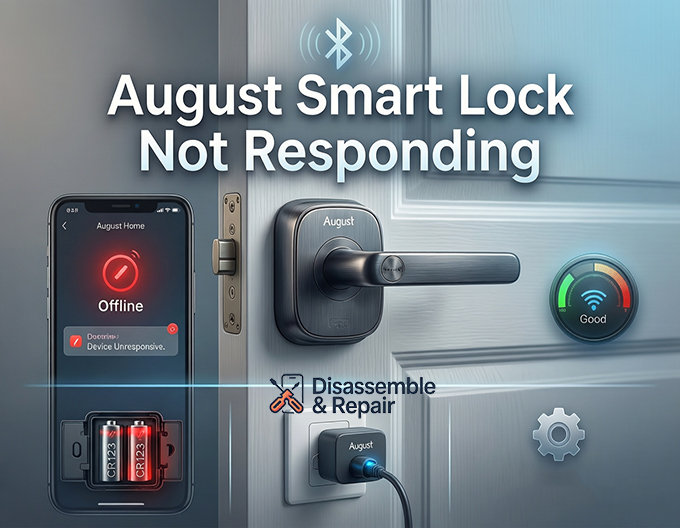
When the August Home App displays a “device unresponsive” or “offline” status, the lock often cannot communicate with the August Cloud or your smartphone via Bluetooth connectivity. This disruption prevents remote locking, unlocking, and status updates. By systematically checking the Wi-Fi signal strength, bridge connections, and power sources, you can restore functionality quickly.
Connectivity solutions: Bluetooth, Wi-Fi, and Bridges
Connectivity is the lifeline of your smart lock. Most responsiveness issues are resolved by re-establishing the link between your lock, your phone, and the internet.
Troubleshooting bluetooth connectivity
Your lock primarily communicates with your phone via Bluetooth when you are nearby.
- Toggle Bluetooth: Turn off Bluetooth on your smartphone, wait 10 seconds, and turn it back on.
- Airplane Mode: Briefly enable Airplane Mode to sever all wireless connections, then disable it to force a fresh reconnection.
- Proximity Check: Ensure you are within a few feet of the door. Physical obstructions can dampen the signal, causing the lock to appear unresponsive.
Optimizing the august connect bridge
If you use an August Connect Bridge for remote access, the bridge acts as a translator between the lock’s Bluetooth signal and your home’s Wi-Fi.
- Check Signal Strength: Open the August Home App and navigate to Lock Settings > Connect Settings. Look for signal levels for both Bluetooth and Wi-Fi. Both need to be in the “Good” or “Excellent” range.
- Bridge Placement: The bridge should be plugged into an outlet within 10-15 feet of the lock. If it is too far, the Bluetooth signal may degrade, resulting in the lock not responding.
- Power Cycle: Unplug the bridge for 60 seconds and plug it back in to refresh its connection to the August Cloud.
Wi-Fi signal strength
For the August Wi-Fi Smart Lock (4th Gen) which connects directly to Wi-Fi, a weak signal is a common culprit.
- Network Band: Ensure your lock is connected to a 2.4GHz network, which offers better range through walls than 5GHz bands.
- Router Position: If your router is far from the front door, consider using a Wi-Fi extender to boost the Wi-Fi signal strength specifically for your smart lock.
Power issues and battery maintenance
A common reason for an unresponsive lock is insufficient power. Even if the app does not yet show a “Low Battery” warning, voltage drops can prevent the motor from engaging.
CR123A batteries and replacement
Many newer August models, including the Wi-Fi Smart Lock, utilize CR123A batteries.
- Access the Compartment: Press the logo on the faceplate to release the magnetic cover and access the battery compartment.
- Check Orientation: Ensure the positive (+) and negative (-) ends are aligned correctly.
- Replace All Batteries: Always replace both CR123A batteries simultaneously. Mixing old and new batteries can lead to unstable power delivery and erratic behavior.
- Hardware Reset: Removing and reinserting the batteries also performs a soft reboot of the internal hardware, which can often clear minor freezing glitches.
Software, Firmware, and Calibration
Outdated software can lead to compatibility issues with your phone’s operating system or home automation platforms.
Firmware update
August frequently releases updates to improve stability and security.
- Check for Updates: Open the August Home App and go to Lock Settings. If a firmware update is available, you will typically see a notification.
- Update Process: Keep your phone near the lock with the app open during the update. Do not close the app or move out of range until the process is complete.
Smart lock calibration
If the lock responds but jams or reports the wrong status (e.g., saying it is unlocked when it is locked), it requires recalibration.
- Initiate Calibration: In the app, select Lock Settings and tap on Smart lock calibration.
- Follow Prompts: You will be asked to manually lock and unlock the door. This teaches the lock the exact physical limits of your deadbolt, preventing motor strain and “not responding” errors caused by mechanical resistance.
Advanced integration troubleshooting
If your lock works in the August app but fails in third-party ecosystems, the issue lies in the integration protocol.
Apple homeKit “No Response”
A “No Response” status in Apple HomeKit is a distinct issue from the August app being offline.
- Hub Reboot: Restart your Apple Home Hub (HomePod, Apple TV, or iPad).
- Reset HomeKit Data: In the August App, go to Lock Settings > HomeKit and select “Reset HomeKit.” You will need to scan the HomeKit QR code again to re-pair the device.
Z-Wave protocol issues
For the August Smart Lock Pro connecting to a hub (like SmartThings or Hubitat) via the Z-Wave protocol:
- Heal Network: Run a “Z-Wave Repair” or “Network Heal” from your hub’s interface to update the mesh network routes.
- Exclusion/Inclusion: If the lock remains unresponsive, you may need to exclude the device from your Z-Wave network and re-include it to establish a fresh secure handshake.
Performing a factory reset
If all troubleshooting steps fail, a factory reset restores the lock to its out-of-the-box state.
- Requirement: You must be within Bluetooth range of the lock to perform this action.
- Process: Go to Lock Settings in the app and scroll down to Factory Reset. This will erase all guest access, keycodes, and custom settings.
- Post-Reset: After resetting, you will need to set up the lock as a new device, reconnect it to Wi-Fi or the August Connect Bridge, and perform the smart lock calibration again.
By systematically addressing power, connectivity, and software configurations, you can resolve the “August Smart Lock Not Responding” error and ensure your home remains secure and accessible.
Frequently asked questions
Why does my August Smart Lock show as “offline” or “unresponsive” in the app?
This status usually indicates a break in the communication link between the lock, your smartphone, or the August Cloud. Common causes include being out of Bluetooth range, a disconnected August Connect Bridge, or a weak 2.4GHz Wi-Fi signal. To fix this, try toggling your phone’s Bluetooth or power cycling your bridge by unplugging it for 60 seconds.
What should I do if the lock responds but reports the wrong status?
If the app indicates the door is locked when it is actually open, or if the motor jams frequently, you likely need to perform a smart lock calibration. This process is found in the “Lock Settings” of the August app and involves manually turning the deadbolt to teach the motor its physical travel limits.
How do I fix the “No Response” error specifically in Apple HomeKit?
A “No Response” error in HomeKit is often separate from the August app’s connectivity. First, restart your Apple Home Hub (such as an Apple TV or HomePod). If the issue persists, use the August app to navigate to Lock Settings > HomeKit and select “Reset HomeKit” to re-pair the device using the QR code.
Why is my lock still unresponsive after I replaced the batteries?
Ensure you have replaced both CR123A batteries at the same time, as mixing old and new batteries can cause unstable voltage. Additionally, check that the positive (+) and negative (-) ends are aligned correctly according to the markings in the battery compartment. Removing and reinserting the batteries also acts as a hardware reboot, which can clear minor software freezes.
When is a factory reset necessary?
A factory reset should be used as a last resort if all other troubleshooting steps—such as power cycling and firmware updates—fail to restore connectivity. Keep in mind that a factory reset will erase all guest access, keycodes, and custom settings, requiring you to set up the lock as a completely new device.