
Experiencing connectivity issues with your smart thermostat can be frustrating, but finding a permanent Ecobee Offline Fix is often straightforward with the right approach. Whether your device shows a “No Wi-Fi” icon or appears disconnected in the mobile application, this guide addresses the root causes and provides professional-grade solutions to restore your system’s online status.
Initial diagnostics and quick checks
Before attempting advanced network reconfiguration, perform these preliminary checks to rule out temporary glitches or external factors.
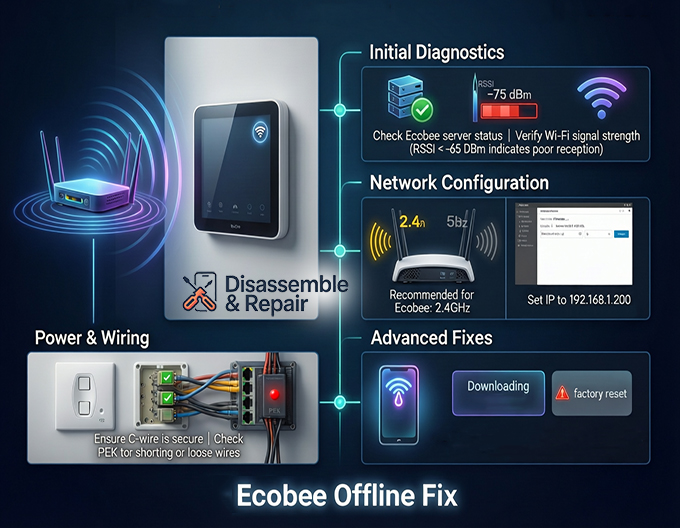
Verify ecobee server status
Sometimes the issue lies not with your hardware but with the cloud infrastructure. Check the official Ecobee status page to ensure their servers are operational. If the servers are down, your Ecobee app will show the device as offline even if your local Wi-Fi is functioning perfectly.
Inspect Wi-Fi signal strength
A weak signal is the most common reason for intermittent connectivity. You can diagnose this directly on the thermostat:
- Go to Main Menu > Settings > Wi-Fi.
- Navigate to Diagnostics or Wi-Fi Speed (depending on your firmware version).
- Look for the RSSI value. A signal weaker than -65 dBm (e.g., -75 dBm) indicates poor reception.
If the signal is weak, network interference from thick walls, metal appliances, or other wireless devices may be blocking the connection.
Master ecobee offline fix: Network configuration
If basic troubleshooting fails, the issue likely stems from router settings or frequency band incompatibilities.
2.4GHz frequency band requirement
While newer Ecobee models support dual-band Wi-Fi, older units and even some modern ones perform significantly better on the 2.4GHz frequency band. This band offers superior range and wall penetration compared to 5GHz.
- Action: Access your router’s admin panel. If you have a single SSID (network name) for both bands, try creating a separate “Guest” network dedicated solely to 2.4GHz traffic and connect your Ecobee to that.
Resolving IP address conflicts
An IP address conflict occurs when your router assigns the Ecobee an IP address that is already in use by another device. This results in the thermostat being kicked off the network.
- Fix: Assign a Static IP to your thermostat.
- On the thermostat, go to Settings > Wi-Fi > Network.
- Disconnect and then reconnect manually.
- During setup, choose “Manual” IP configuration instead of DHCP.
- Enter an IP address high in the range (e.g., 192.168.1.200) to avoid conflicts.
Power and wiring issues
A consistent Wi-Fi connection requires stable power. If your HVAC system is delivering fluctuating voltage, the Wi-Fi radio is often the first component to fail.
Checking the C-Wire (Common Wire)
The C-wire (Common wire) provides continuous 24-volt power to your smart thermostat. Without it, the device relies on “power stealing” from other wires, which can be unreliable during heavy HVAC usage.
- Inspection: Remove the thermostat faceplate and ensure the wire connected to the “C” terminal is secure.
Power extender kit (PEK)
If your home lacks a C-wire, you likely installed the Power Extender Kit (PEK) at your furnace control board.
- Troubleshooting: Check the PEK for loose connections. Ensure the PEK is not touching any metal components that could cause shorting or interference. A failing PEK can cause the thermostat to reboot randomly, leading to persistent offline status.
Advanced solutions
Firmware update
An outdated firmware update can lead to compatibility issues with modern routers. While Ecobee pushes updates automatically, an offline device cannot receive them.
- Workaround: You may need to use a mobile hotspot to temporarily get the thermostat back online. Once connected to the hotspot, the device will automatically download the latest firmware, potentially fixing the bug that prevented it from connecting to your main router.
Factory reset
As a final measure, a factory reset will return the device to its out-of-the-box state.
- Warning: This will erase all your schedules, comfort settings, and HomeKit configurations.
- Steps: Go to Main Menu > Settings > Reset > Reset All Settings. After the reset, you will need to perform the initial setup again, including reconnecting to Wi-Fi and configuring your HVAC equipment type.
By systematically addressing Wi-Fi signal strength, verifying router settings, and ensuring stable power through the C-wire or PEK, you can achieve a permanent Ecobee Offline Fix and regain full control over your home’s climate.
Frequently asked questions
Why does my Ecobee show as offline in the app even though my home internet is working?
This is often caused by a temporary outage of Ecobee’s cloud servers. You should check the official Ecobee status page to see if their systems are operational. If the servers are fine, the issue may be a weak Wi-Fi signal (an RSSI value weaker than -65 dBm) or an IP address conflict between the thermostat and another device on your network.
Should I connect my Ecobee to a 2.4GHz or 5GHz Wi-Fi network?
While some newer models support dual-band Wi-Fi, the 2.4GHz frequency is generally recommended. It provides a longer range and is better at penetrating thick walls and metal obstacles than the 5GHz band, which helps maintain a more stable connection for smart home devices.
How can I fix a thermostat that keeps disconnecting due to an IP address conflict?
To resolve an IP conflict, you should assign a Static IP to your thermostat. This is done by going to the Wi-Fi settings on the device, selecting “Manual” configuration instead of DHCP during the network setup, and entering a specific IP address (such as 192.168.1.200) that is unlikely to be used by other devices.
Can wiring issues cause my Ecobee to lose its Wi-Fi connection?
Yes. Stable Wi-Fi requires consistent 24-volt power provided by a C-wire (Common wire). If your system lacks a C-wire and uses “power stealing” or a Power Extender Kit (PEK), loose connections or fluctuating voltage can cause the Wi-Fi radio to fail or the device to reboot, leading to frequent offline status.
What should I do if my thermostat cannot connect to the router to receive a firmware update?
If a software bug is preventing your device from connecting to your router, you can use a mobile hotspot as a temporary workaround. Connect the Ecobee to your phone’s hotspot to allow it to download the latest firmware updates automatically. Once updated, the device may have improved compatibility with your home router.