
Is your Nest Thermostat not connecting to WiFi, leaving you without remote control over your home’s climate? This frustrating issue can disrupt your smart home ecosystem, but it is often resolvable with a systematic troubleshooting approach. Whether you are seeing an error code or simply cannot find your network, this guide will walk you through the professional steps to restore connectivity.
Initial diagnosis: Error codes and power issues
Before diving into complex network settings, it is crucial to identify why the connection failed. The two most common culprits are specific error codes and insufficient power delivery.
The W5 error code
If your thermostat displays a W5 error code, it specifically indicates that the device’s internal Wi-Fi chip is failing to connect to a network. This is a known issue with certain models, particularly the Nest Learning Thermostat.
- Check the Network Menu: Navigate to Settings > Network on the thermostat ring. If you see “Error – nest.com/w5,” the Wi-Fi chip may be unresponsive.
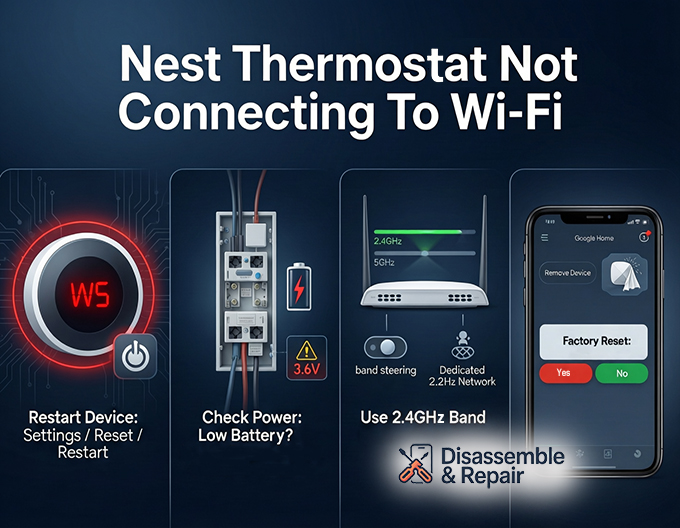
- Restart the Device: often, a simple reboot can clear temporary software glitches causing the W5 error. Go to Settings > Reset > Restart.
Power and the C-wire
A frequently overlooked cause for Wi-Fi disconnection is power. If your system lacks a C-wire (Common wire), the thermostat relies on “power stealing” from the heating or cooling wires to charge its internal battery. When the battery level drops below a certain threshold (usually 3.6V – 3.7V), the thermostat prioritizes core functions like heating over Wi-Fi, causing it to disconnect to save energy.
- Verify Power: Check Settings > Technical Info > Power. If the battery voltage is low, installing a C-wire or a Nest Power Connector is often the permanent fix.
Nest thermostat Not connecting to Wi-Fi: Advanced solutions
If basic restarts and power checks do not resolve the issue, you must look into your network environment. The Nest Thermostat not connecting to WiFi is often a symptom of incompatibility between modern router technology and the thermostat’s radio hardware.
Frequency bands: 2.4GHz vs. 5GHz
Most Nest thermostats are compatible with both 2.4GHz and 5GHz networks, but some older models or specific setups perform significantly better on the 2.4GHz frequency.
- Signal Penetration: The 2.4GHz band travels through walls and floors better than 5GHz. If your thermostat is located far from the router, forcing a connection to the 2.4GHz band can improve Wi-Fi signal strength.
- Band Steering: Modern mesh routers often use “band steering” to automatically switch devices between frequencies. This can confuse the thermostat. If possible, create a separate Guest Network on your router dedicated solely to the 2.4GHz band and connect your Nest Thermostat to that.
Network interference and router settings
Network interference from other household devices can disrupt the signal. Baby monitors, microwaves, and cordless phones operating on the same frequency can crowd the channel.
- Channel Selection: Access your router settings via a web browser. Manually changing the Wi-Fi channel (channels 1, 6, and 11 are non-overlapping standards for 2.4GHz) can help bypass interference.
- Firewall Settings: Ensure your router’s firewall is not blocking the ports Nest uses to communicate with the Google Home app and Nest servers (typically ports 80, 443, and 9543).
MAC address filtering
Security-conscious users often enable MAC address filtering on their routers to prevent unauthorized devices from connecting. If this is active, your router will block the thermostat unless its unique ID is whitelisted.
- Find the MAC Address: On the thermostat, go to Settings > Technical Info > Network. You will see the MAC address listed there.
- Update Router: Log into your router’s admin panel and add this alphanumeric code to the “Allowed Devices” list.
Software updates and app connectivity
Outdated firmware can lead to compatibility issues with newer Wi-Fi security protocols like WPA3.
Performing a software update
Usually, the thermostat updates automatically. However, if it has been offline for a long time, it may be stuck on an old version.
- Mobile Hotspot Method: If your home Wi-Fi is too secure or complex for the outdated software to join, try creating a mobile hotspot with your smartphone.
- Connect and Update: Connect the thermostat to the hotspot. Once online, the device should automatically initiate a software update. After the update is complete, try reconnecting it to your main home network.
Managing via the nest app and google home app
Depending on your model, you might be using the Nest app or the Google Home app.
- Migration Issues: If you recently migrated from a Nest account to a Google account, ensure you are logged into the correct app.
- Removing the Device: Sometimes, the app retains “zombie” data about the offline device. Removing the thermostat from the app entirely and setting it up as a new device can force a fresh handshake with the Wi-Fi network.
The factory reset: The last resort
If you have exhausted all network troubleshooting and the device still refuses to connect, a factory reset is the final step before contacting support. This will erase all your schedules, learning data, and Wi-Fi settings, returning the device to its “out of the box” state.
How to Factory Reset:
- Press the thermostat ring to open the Quick View menu.
- Turn the ring to Settings and press to select.
- Scroll to Reset and select it.
- Choose All Settings (or Network if you only want to clear Wi-Fi data, though a full reset is more thorough for persistent issues).
- Confirm your choice. The thermostat will take a few minutes to clear its data and reboot.
Once the device restarts, you will need to go through the initial setup process again. Have your phone ready with the Google Home app or Nest app to attempt the connection from scratch.
When to replace the hardware
In rare cases, persistent W5 errors or an inability to detect any Wi-Fi networks (even after a factory reset) may indicate hardware failure. The Wi-Fi radio inside the thermostat can degrade over time. If you have verified that your router is working perfectly for other devices and you have ruled out power issues (C-wire), you may need to contact Google Nest support for a warranty replacement.
By systematically isolating power, network interference, and software issues, you can resolve most connectivity problems. Maintaining a stable connection ensures your Nest Thermostat continues to optimize your home’s energy efficiency effectively.
Frequently asked questions
What does the W5 error code mean on my Nest Thermostat?
The W5 error specifically indicates that the thermostat’s internal Wi-Fi chip is failing to connect to a network. This is often caused by a temporary software glitch that can be fixed by restarting the device (Settings > Reset > Restart), but if it persists after a factory reset, it may indicate a hardware failure.
Why does my thermostat keep disconnecting from Wi-Fi even though my internet is working?
This is often related to power. If your system does not have a C-wire (Common wire), the thermostat relies on its internal battery. When the battery level drops below 3.6V – 3.7V, the device will automatically turn off the Wi-Fi connection to save power for core heating and cooling functions. Installing a C-wire or a Nest Power Connector is the recommended permanent solution.
Which Wi-Fi frequency is best for the Nest Thermostat?
While many Nest models support both 2.4GHz and 5GHz, the 2.4GHz band is generally more reliable for thermostats because it has better signal penetration through walls and floors. If you use a mesh router with “band steering,” you may have better results by creating a dedicated 2.4GHz guest network specifically for your smart home devices.
How can I update my thermostat software if it won’t connect to my home Wi-Fi?
If your home network settings are too complex or secure for an outdated thermostat to join, you can use your smartphone to create a mobile hotspot. Connect the Nest Thermostat to the hotspot long enough to download and install the latest software updates, then try reconnecting it to your main home network.
When should I perform a factory reset on my Nest Thermostat?
A factory reset should be treated as a last resort because it erases all your schedules and learning data. You should only perform this step if you have already verified your power levels, checked for network interference, and tried restarting the device, but still cannot establish a connection.