
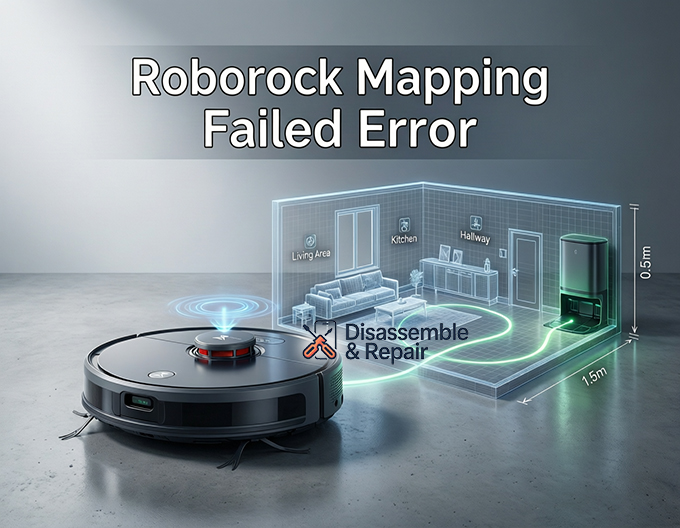
Experiencing a Roborock Mapping Failed Error can be frustrating, especially when your smart home cleaning routine depends on precision navigation. This issue often arises when the robot vacuum cannot reconcile its physical surroundings with the digital map stored in its memory, leading to incomplete cleaning cycles or the robot getting lost. Whether you are using a Roborock S7, S8, or the Q Revo series, understanding the root causes of these navigation failures is the first step toward restoring peak performance.
Common causes of roborock mapping failed error
The “Roborock Mapping Failed Error” typically triggers a specific set of symptoms, ranging from the robot spinning in circles to explicit error messages in the Roborock App or Mi Home App.
LiDAR sensor and laser distance sensor (LDS) malfunctions
The primary navigation tool for most Roborock models is the LiDAR Sensor, often referred to as the Laser Distance Sensor (LDS). This turret on top of the unit spins to scan the room. If the LDS is obstructed by debris, pet hair, or internal motor failure, the robot cannot “see” walls or furniture. A common indicator of this is Error 1, which specifically signals that the LiDAR turret is blocked or unable to spin.
Infrared sensors and dirty cliff sensors
While LiDAR handles room geometry, Infrared Sensors (specifically the cliff sensors located on the bottom) prevent falls. If these sensors are covered in dust, the robot may trigger Error 4. Although this is technically a cliff sensor error, it disrupts the mapping process because the robot believes it is trapped or in danger, causing it to abort the mapping run.
Environmental changes and Wi-Fi connection
A Roborock Mapping Failed Error can also occur if the physical environment changes drastically—such as moving furniture or opening doors that were previously closed. Additionally, a weak Wi-Fi Connection can interrupt the data transfer between the robot and the server, causing map saving failures, particularly in large homes.
Troubleshooting the roborock mapping failed error
To resolve these mapping issues, follow this systematic approach, starting with the simplest hardware fixes before moving to software solutions.
Step 1: Clean the sensors
The most common fix is physical maintenance. Dust accumulation can blind the robot’s navigation systems.
- LiDAR Sensor: Use a cotton swab gently moistened with alcohol to clean the “eyes” of the laser turret. Ensure the turret spins freely by gently rotating it with your finger.
- Infrared Sensors: Wipe the cliff sensors on the underside of the unit with a soft, dry cloth.
- Wall Sensors: Clean the sensor on the side of the bumper to ensure accurate edge cleaning.
Step 2: Map management in the App
If hardware cleaning doesn’t resolve the Roborock Mapping Failed Error, the issue likely lies within the digital map file.
- Open the Roborock App or Mi Home App.
- Navigate to Map Management.
- Restore Map: If you have a backup, use the “Restore” function to revert to a previous valid map.
- Delete Map: If the map is corrupted (showing “phantom” rooms or overlapping layers), it is best to delete the current map and allow the robot to perform a Quick Mapping run.
Step 3: Firmware update
Outdated software can cause bugs in the navigation algorithm. Check for a Firmware Update in the app settings. Roborock frequently releases patches to improve Obstacle Avoidance and mapping logic. Ensure your robot is on the Charging Dock with at least 20% battery before initiating an update.
Step 4: Factory reset
As a last resort, a Factory Reset can clear persistent system errors.
- Open the top cover to locate the Reset button (usually near the Wi-Fi indicator).
- Press and hold the generic “Home” button while using a pin to press the “Reset” button once.
- Hold the “Home” button until you hear the voice prompt “Restoring initial version.”
Note: This will disconnect the robot from Wi-Fi and delete all maps, schedules, and settings.
Optimizing multi-floor mapping and dock placement
Preventing future mapping errors often involves setting up your environment correctly, especially for multi-story homes.
Mastering multi-floor mapping
Roborock vacuums excel at Multi-floor Mapping, but user error often causes confusion.
- Save the Map: Always ensure the “Map Saving” (beta) or “Multi-floor Map” feature is enabled in the app settings before you start.
- No Dock Needed: You do not need to move the Charging Dock to the second floor. simply carry the robot upstairs and place it down.
- Automatic Recognition: Upon starting, the robot will spin to position itself. If it recognizes the floor plan, it will load the correct map. If it fails, you may see a “Positioning Failed” message; ensure the area is well-lit and distinct.
Charging dock placement
The location of your Charging Dock acts as the “0,0” coordinate for your map.
- Stability: Secure the dock against a wall with at least 0.5 meters of clearance on either side and 1.5 meters in front.
- Avoid Movement: Never move the dock after mapping is complete. If you must move it, you will likely need to delete the map and remap the area to avoid the Roborock Mapping Failed Error.
Conclusion
The Roborock Mapping Failed Error is usually a symptom of dirty sensors or a corrupted map file rather than a permanent hardware failure. By systematically cleaning the LiDAR Sensor and Infrared Sensors, managing your maps within the app, and ensuring your firmware is up to date, you can typically resolve the issue without professional repair. Regular maintenance and proper use of the Multi-floor Mapping features will ensure your Roborock continues to navigate your home efficiently.
Frequently asked questions
Why is my Roborock vacuum showing a “Mapping Failed” error?
This error typically occurs when the robot’s sensors are dirty or its path is obstructed. The most common culprit is dust or debris on the LiDAR (Laser Distance Sensor) turret or the cliff sensors on the bottom of the unit. It can also happen if you have moved furniture significantly or if the Wi-Fi connection was interrupted during the mapping process.
How can I fix a map that looks corrupted or has overlapping rooms?
If your map shows “phantom” walls or overlapping layers, the map file is likely corrupted. Open the Roborock or Mi Home App, go to “Map Management,” and attempt to “Restore” a previous version of the map. If that doesn’t work, it is best to delete the current map and initiate a “Quick Mapping” run to create a fresh, accurate floor plan.
Do I need to move the charging dock to map a second floor?
No, you do not need to move the charging dock for multi-floor mapping. Simply enable the “Multi-floor Map” feature in your app settings, carry the robot to the other floor, and start a cleaning cycle. The robot will scan the area and create a new map automatically without needing its base.
What should I do if the LiDAR turret on top of the vacuum isn’t spinning?
A stationary LiDAR turret usually triggers “Error 1.” Check for hair, dust, or small debris trapped inside the turret. You can use a cotton swab to clean the sensor “eyes” and gently rotate the turret with your finger to ensure it moves freely. If it remains stuck, a hardware issue may require professional service.
Will a factory reset delete my existing maps?
Yes. A factory reset returns the robot to its original out-of-the-box settings. This process will delete all saved maps, cleaning schedules, and Wi-Fi configurations. It should only be used as a last resort if cleaning the sensors and updating the firmware fail to resolve the mapping errors.