
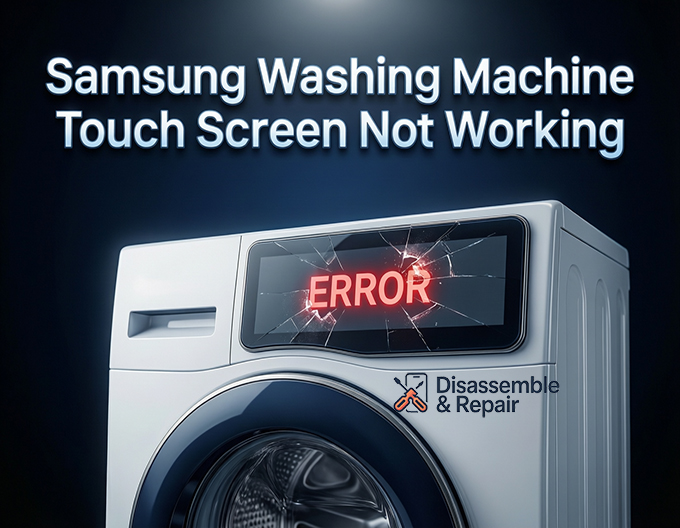
If you find your Samsung washing machine touch screen not working, it can be a frustrating interruption to your daily laundry routine. A responsive control panel is essential for selecting cycles and monitoring your wash, but when the display freezes or fails to register touches, it often signals an underlying issue ranging from simple settings to hardware malfunctions.
The modern Samsung washer is a sophisticated appliance driven by complex electronics. While this technology offers convenience, it also introduces potential points of failure like software glitches, moisture interference, or loose internal connections. This guide will walk you through a comprehensive troubleshooting process, starting with quick fixes and moving toward advanced hardware repairs. By understanding the role of entities like the PCB board, ribbon cables, and firmware, you can diagnose the problem accurately and restore your machine’s functionality.
Immediate Troubleshooting: Quick Fixes for Unresponsive Screens
Before assuming a major component failure, it is crucial to rule out common operational glitches. Many touch screen issues are temporary and can be resolved without tools.
Perform a Hard Reset
The most effective first step for electronic glitches is a hard reset. Modern washing machines are essentially computers, and like any computer, they can freeze due to minor software errors or power fluctuations. A simple power cycle can clear the temporary memory (cache) and reset the main control board.
To perform a hard reset:
- Turn off the washing machine using the power button (if responsive).
- Unplug the machine from the power outlet.
- Wait for at least 5 to 10 minutes. This allows all residual electrical charge to dissipate from the capacitors on the PCB board.
- Plug the machine back in and attempt to turn it on.
- Test the touchpad responsiveness by selecting different cycles.
This process forces the firmware to reload, often clearing the glitch that caused the screen to become unresponsive.
Read more Samsung washing machine PF error
Deactivate Child Lock
A very common reason for a “broken” touch screen is simply the Child Lock feature being active. This safety protocol is designed to prevent children from accidentally changing cycle settings or starting the machine. When Child Lock is engaged, the touch screen will appear completely unresponsive to any input except for the Power button.
To check and disable Child Lock:
- Look for a padlock icon or a smiling face icon on the display assembly. If it is lit, the lock is active.
- Locate the two buttons on the control panel marked with the Child Lock symbol (often connected by a line). Common combinations include Temp + Rinse or Spin + Options.
- Press and hold both buttons simultaneously for 3 to 5 seconds.
- The lock icon should disappear, and the touch screen should regain full functionality.
If you are unsure of the specific combination for your model, consult your user manual, as the button mapping varies between series.
Read more Samsung washer not working after cleaning filter
Environmental Factors: Moisture and Dirt
The environment in your laundry room plays a significant role in the health of your machine’s electronics. The touch screen relies on capacitive or resistive sensors, which can be easily confused by foreign substances.
Moisture Buildup
High humidity or direct water splashes can cause moisture buildup behind the display overlay or on the surface of the screen. Water conducts electricity, which can trigger “phantom touches” (where the machine acts as if buttons are being pressed) or cause the screen to ignore legitimate inputs.
- Surface Cleaning: Wipe the screen with a dry, soft microfiber cloth. Avoid using abrasive chemicals. If there is visible condensation inside the display window, you may need to use a dehumidifier in the room or carefully use a hair dryer on a cool/low setting from a distance to dry it out.
- Internal Moisture: If the machine is located in a damp garage or basement, moisture may have penetrated the display assembly, affecting the circuit board contacts. In this case, unplugging the machine and allowing it to dry out for 24-48 hours often resolves the issue.
Digital Diagnostics: Firmware and Error Codes
If physical resets and cleaning do not work, the issue might be rooted in the machine’s software or internal communication systems.
Firmware Update
Samsung frequently releases software improvements for their smart appliances. An outdated system can lead to bugs that cause the touchpad responsiveness to lag or fail. If your washing machine is Wi-Fi enabled and connected to the SmartThings app, checking for a firmware update is a vital troubleshooting step.
- Open the SmartThings app on your smartphone.
- Select your washing machine from the device list.
- Tap the “More Options” (three dots) menu and select “Information.”
- If an update is available, you will see a “Firmware Update” button. Tap “Update Now.”
Note: Do not unplug or turn off the machine during an update, as this can corrupt the main control board.
Interpreting Error Codes
When the touch screen detects a fault, it may display specific error codes. Understanding these can point you directly to the hardware failure.
- bE / bE2 Error: These codes specifically indicate a “stuck button” on the control panel. This happens if a button is physically jammed or if the sensor continuously registers a press (often due to moisture).
- AC / AC6 Error: These indicate a communication error between the main PCB board (located in the back of the machine) and the sub-PCB (located in the front display).
If you see these codes, the issue is likely a hardware fault rather than a simple software glitch.
Advanced Hardware Inspection
When basic troubleshooting fails, you must inspect the physical components. This involves opening the machine, so ensure you unplug it first to prevent electric shock.
Checking the Ribbon Cable
The communication lifeline between your touch screen and the main control board is a flat, multi-wire component known as the ribbon cable. Over time, vibrations from high-speed spin cycles can cause this cable to wiggle loose or become damaged.
Inspection Steps:
- Remove the top cover of the washing machine (usually secured by two screws at the back).
- Locate the wire harness running from the front control panel to the main board casing in the rear.
- Inspect the ribbon cable for any signs of wear, pinching, or corrosion.
- Locate the connection point on the display assembly. Gently disconnect and reconnect (reseat) the cable to ensure a firm connection. A loose cable is a leading cause of intermittent touch screen failure.
Inspecting the PCB Board and Display Assembly
If the ribbon cable is secure, the fault likely lies within the circuit boards themselves.
Read more Samsung washer not spinning
- Display PCB: This is the circuit board directly behind the touch screen. If moisture has corroded the contacts, or if a capacitor has failed, the entire display assembly may need replacement. You can visually inspect it for “bloated” capacitors or burnt marks.
- Main Control Board: This is the brain of the washer. If the main board is failing to send the correct 5V or 12V power signal to the display, the screen will remain dark or unresponsive. A multimeter can be used to check if the board is outputting voltage to the display connector (refer to your technical sheet for pinout values).
When to Replace Hardware
If you have performed a power cycle, ensured Child Lock is off, updated the firmware, and checked internal connections without success, you are likely facing a component failure.
- Scenario A: The screen lights up but does not respond to touch. This usually indicates a failure in the digitizer or the display assembly PCB. Replacement of the front control board is the standard fix.
- Scenario B: The screen is completely dead (no lights). This often points to a power supply issue from the main control board or a severed ribbon cable.
Replacing the PCB board or display assembly is a manageable DIY task for those comfortable with a screwdriver, but it requires sourcing the exact part number for your specific model.
Conclusion
A Samsung washing machine touch screen not working can often be fixed with simple patience and troubleshooting. By systematically ruling out the Child Lock, performing a hard reset, and managing moisture buildup, you can save yourself the cost of a service call. However, if the issue persists, the problem likely lies in the internal hardware—specifically the ribbon cable connections or the PCB boards. Whether you choose to replace these parts yourself or call a professional, understanding these entities ensures you are not paying for unnecessary repairs. Always remember to prioritize safety by unplugging your appliance before attempting any internal inspections.
Frequently Asked Questions
Why is my Samsung washer touch screen not responding to any input?
The most common cause is the Child Lock feature being active. When enabled, a padlock or smiling face icon will appear on the display, and all buttons except the Power button will be disabled. To fix this, press and hold the designated Child Lock buttons (commonly Temp + Rinse or Spin + Options) simultaneously for 3 to 5 seconds until the icon disappears.
How do I perform a hard reset on my Samsung washing machine?
To perform a hard reset, turn off the machine and unplug it from the power outlet. Wait at least 5 to 10 minutes to allow the electrical charge to dissipate from the PCB board’s capacitors. Plug the machine back in and turn it on; this often clears temporary software glitches or “frozen” screens.
Can moisture or humidity cause the touch screen to malfunction?
Yes. Since the screen uses capacitive sensors, moisture buildup or even a thin layer of grime can interfere with touch registration. Wipe the control panel with a dry microfiber cloth. If the machine is in a damp environment, using a dehumidifier or allowing the unit to dry out for 24 to 48 hours may resolve “phantom touches” or unresponsiveness.
What should I do if my screen displays a “bE” or “AC” error code?
A “bE” or “bE2” error indicates a stuck button or a sensor that is constantly registering a touch. An “AC” or “AC6” error signals a communication failure between the main PCB board and the display assembly. If a hard reset does not clear these codes, you may need to inspect the internal ribbon cable for a loose connection or replace the control board.
Read more Samsung washing machine LC1 error
How can I update the software on my Samsung washing machine?
If your washer is Wi-Fi enabled, you can update the firmware using the Samsung SmartThings app. Select your washer in the app, go to “More Options,” then “Information,” and tap “Update Now” if a version is available. Keeping the firmware updated can prevent software-related touch screen lag or freezes.