
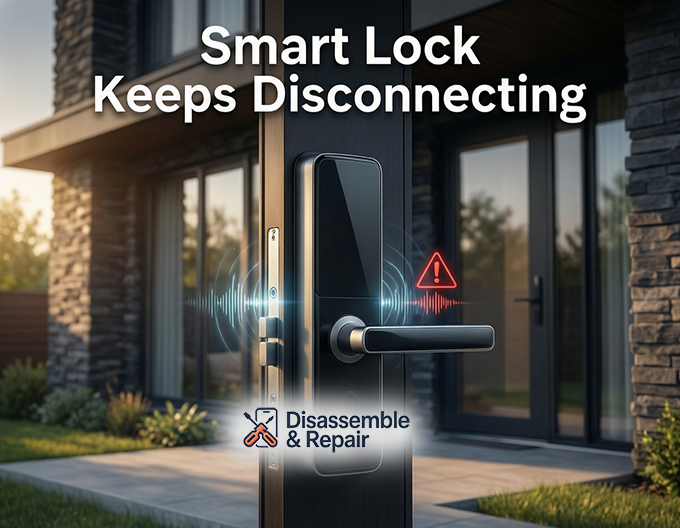
Few technical glitches are as aggravating as realizing your Smart Lock Keeps Disconnecting just as you are trying to secure your home for the night. This intermittent loss of connection compromises the convenience of keyless entry and prevents remote monitoring features from functioning correctly. Whether you are using a Wi-Fi, Bluetooth, or Z-Wave enabled device, maintaining a stable link is critical for the security ecosystem of a modern smart home.
In this comprehensive guide, we will explore the technical variables behind these disconnections and provide professional-grade solutions to restore stability to your entry system.
Why your smart lock keeps disconnecting
When diagnosing why a Smart Lock Keeps Disconnecting, it is essential to look beyond the lock itself and examine the entire network infrastructure. A smart lock is an endpoint device; its reliability is entirely dependent on the strength and stability of the communication protocol it uses to talk to your phone or hub.
Disconnections rarely happen without a cause. They are typically symptoms of network congestion, power fluctuations, or software conflicts. By systematically eliminating these variables, we can identify the root cause. The most common culprits usually fall into three categories: wireless signal degradation, power delivery failure, or protocol-specific errors (such as issues within a Z-Wave mesh network).
The impact of signal interference
One of the primary reasons for connectivity loss is signal interference. Most smart home devices operate on similar radio frequencies. If your lock relies on the 2.4 GHz Wi-Fi band, it is competing with microwaves, baby monitors, and your neighbor’s routers. High-density environments create “noise” that can drown out the communication attempts from your lock to your router or hub.
Even physical obstacles play a major role. Metal doors, reinforced concrete walls, and large appliances (like refrigerators) act as Faraday cages or signal blockers. If your lock is installed on a metal door and the antenna is not designed to propagate signal outward effectively, the device will struggle to maintain a “heartbeat” connection with the network.
Analyzing connectivity protocols
Different locks use different languages to communicate. Understanding which protocol your device uses—Wi-Fi, Bluetooth, Zigbee, or Z-Wave—is the first step in fixing the problem.
Wi-Fi signal strength and router placement
For standalone Wi-Fi locks, the issue is almost always related to Wi-Fi signal strength (RSSI). Smart locks are often located at the perimeter of the home, far from the central router. While your smartphone might show one or two bars of Wi-Fi at the front door, the small, low-power antenna inside a smart lock requires a much stronger signal to function reliably.
Wi-Fi router placement is critical here. If your router is tucked away in a basement corner or a centralized closet, the signal may degrade significantly by the time it reaches the front door. To diagnose this, check the RSSI value in your lock’s settings; a value lower than -70 dBm usually indicates a poor connection.
If moving the router is not feasible, installing a range extender or a mesh Wi-Fi point near the entryway can bridge the gap. This ensures the lock has a strong, dedicated access point, reducing packet loss and preventing the “offline” status that plagues many users.
Bluetooth connectivity and app synchronization
Many locks, particularly those from brands like August or Yale, utilize Bluetooth connectivity for local control and auto-unlock features. Bluetooth is a short-range protocol, which means mobile app synchronization is highly sensitive to distance and background app permissions.
If your lock disconnects frequently while you are standing near it, the issue may lie in your smartphone’s operating system putting the lock’s app to sleep to save battery. Ensure the companion app has “Always On” location permissions and background data access. Furthermore, Bluetooth signals are easily absorbed by the human body and water; keeping your phone in a back pocket while facing away from the door can sometimes block the signal enough to cause a failure.
Zigbee gateways and Z-Wave mesh networks
Locks that integrate with systems like SmartThings, Ring, or Hubitat often use low-power protocols like Zigbee or Z-Wave. These devices do not connect directly to the internet; they connect to a smart home hub or a Zigbee gateway.
In these setups, the network topology is vital. A Z-Wave mesh network relies on powered devices (like light switches or smart plugs) to act as repeaters, hopping the signal from the hub to the lock. If your lock is the furthest node in the mesh and there are no repeating devices nearby, the signal will be weak.
If a Z-Wave or Zigbee lock keeps dropping off:
- Check the Hub distance: Is the hub too far away?
- Add Repeaters: Install a Z-Wave or Zigbee smart plug halfway between the hub and the lock to strengthen the mesh.
- Heal the Network: Run a network repair or “Z-Wave Repair” function in your hub interface to optimize the routing paths.
Power and firmware diagnostics
Hardware health is just as important as network health. If the radio inside the lock cannot draw enough power, it will shut down the connection to preserve the ability to mechanically lock and unlock the door.
Battery voltage and voltage drop
Many users assume that as long as the battery percentage reads above 20%, the device should work fine. However, battery voltage is a more accurate metric than percentage. Alkaline batteries have a voltage curve that drops steadily. When the lock motor engages (a high-energy event), the voltage may dip momentarily below the threshold required for the Wi-Fi or Bluetooth radio to operate.
This results in a phenomenon where the lock works physically, but the app reports it as offline immediately after use. This is often caused by using poor-quality batteries or rechargeable batteries (NiMH) that operate at a lower nominal voltage (1.2V) compared to non-rechargeable Alkaline or Lithium batteries (1.5V). Always use the specific battery chemistry recommended by the manufacturer to prevent voltage-related disconnects.
Firmware updates
Manufacturers frequently release software patches to fix bugs and improve connection stability. A missed firmware update can lead to compatibility issues, especially if you have recently updated your phone’s OS or your router’s settings.
Check the manufacturer’s app regularly. If an update fails repeatedly, it is often because the connection is too unstable to download the file. In this case, bring your phone (for Bluetooth updates) or a range extender (for Wi-Fi updates) as close to the lock as possible to ensure a clean data transfer during the update process.
Step-by-Step fixes for persistent disconnection
If you have analyzed the environment and the hardware but the issue persists, follow this structured troubleshooting workflow to resolve the connectivity drops.
1. Power cycle the smart lock
Remove the batteries from the lock for at least two minutes. This clears the onboard cache and forces the device to reboot its wireless radios. Reinsert the batteries and wait for the lock to reconnect.
2. Optimize the wireless channel
If you suspect signal interference, access your router settings. If your 2.4 GHz network is set to “Auto” channel selection, it may be hopping to a congested channel. Manually set it to channel 1, 6, or 11 (the non-overlapping channels) to see if stability improves.
3. Refresh the smart home hub connection
For Zigbee or Z-Wave locks, reboot your smart home hub. Sometimes the hub itself has a stale routing table. After rebooting, command the hub to scan for devices. If you have a Zigbee gateway, ensure it is not placed directly next to your Wi-Fi router, as Zigbee and Wi-Fi share the 2.4 GHz spectrum and can interfere with each other.
4. Re-calibrate mobile app synchronization
Log out of the mobile app, clear the app cache (on Android) or offload the app (on iOS), and log back in. Force close the app and restart it to re-establish the handshake between the server, the app, and the lock.
5. The factory reset (The nuclear option)
If all else fails, a factory reset is the final step. This returns the lock to its out-of-the-box state, erasing all user codes and network settings.
- Delete the device from your app.
- Perform the physical reset procedure on the lock (usually holding a button while inserting batteries).
- Re-add the lock to the app as a new device.
While a factory reset is inconvenient, it eliminates any corrupted configuration files that might be causing the disconnection loop.
Conclusion
A smart lock that frequently goes offline undermines the peace of mind that smart home technology is supposed to provide. By systematically addressing Wi-Fi signal strength, minimizing signal interference, ensuring proper battery voltage, and maintaining the health of your Z-Wave mesh network, you can permanently solve the issue where your Smart Lock Keeps Disconnecting.
Remember that smart locks are complex electronic devices operating in a noisy wireless world. Regular maintenance, including checking for a firmware update and verifying Wi-Fi router placement, is essential to keeping your digital front door open to you, but closed to everyone else.
Frequently asked questions
Why does my smart lock show as offline even if the batteries are not dead?
This is often caused by a drop in battery voltage rather than a lack of total power. When the lock’s motor engages, it requires a high burst of energy; if the batteries cannot maintain the necessary voltage, the wireless radio may shut down to preserve mechanical function. This is particularly common when using rechargeable NiMH batteries, which have a lower nominal voltage than the Alkaline or Lithium batteries recommended by most manufacturers.
How can I improve the connection if my lock is installed on a metal door?
Metal doors can act as signal blockers, making it difficult for the lock to communicate with your Wi-Fi router or hub. To resolve this, ensure your router or smart home hub is placed as close to the entryway as possible. If the signal remains weak (an RSSI value lower than -70 dBm), installing a Wi-Fi range extender or a Z-Wave/Zigbee repeater near the door can help the signal bypass the physical interference.
What should I check if my lock’s mobile app won’t synchronize via Bluetooth?
Bluetooth synchronization issues are often related to smartphone power-management settings. Ensure the lock’s companion app has “Always On” location permissions and background data access enabled. If the phone’s operating system puts the app to sleep to save battery, it will fail to maintain a handshake with the lock. Additionally, try to maintain a clear line of sight between your phone and the lock when synchronizing.
How does a Z-Wave or Zigbee mesh network help with connectivity?
Unlike Wi-Fi locks that talk directly to a router, Z-Wave and Zigbee locks can pass their signal through other powered smart devices, like smart plugs or light switches. If your lock is too far from your hub, adding one of these repeating devices halfway between the hub and the lock will strengthen the mesh network and prevent the lock from dropping offline.
When is a factory reset necessary for fixing connection issues?
A factory reset is recommended as a last resort when the lock is stuck in a “disconnection loop” that power cycling and firmware updates cannot fix. This process erases corrupted configuration files and clears the onboard cache. Keep in mind that a factory reset will delete all user codes and custom settings, requiring you to set up the device as if it were brand new.